Time Capsules
Create and manage your time capsules
Time Capsules
Learn how to create, view, and manage your digital time capsules.
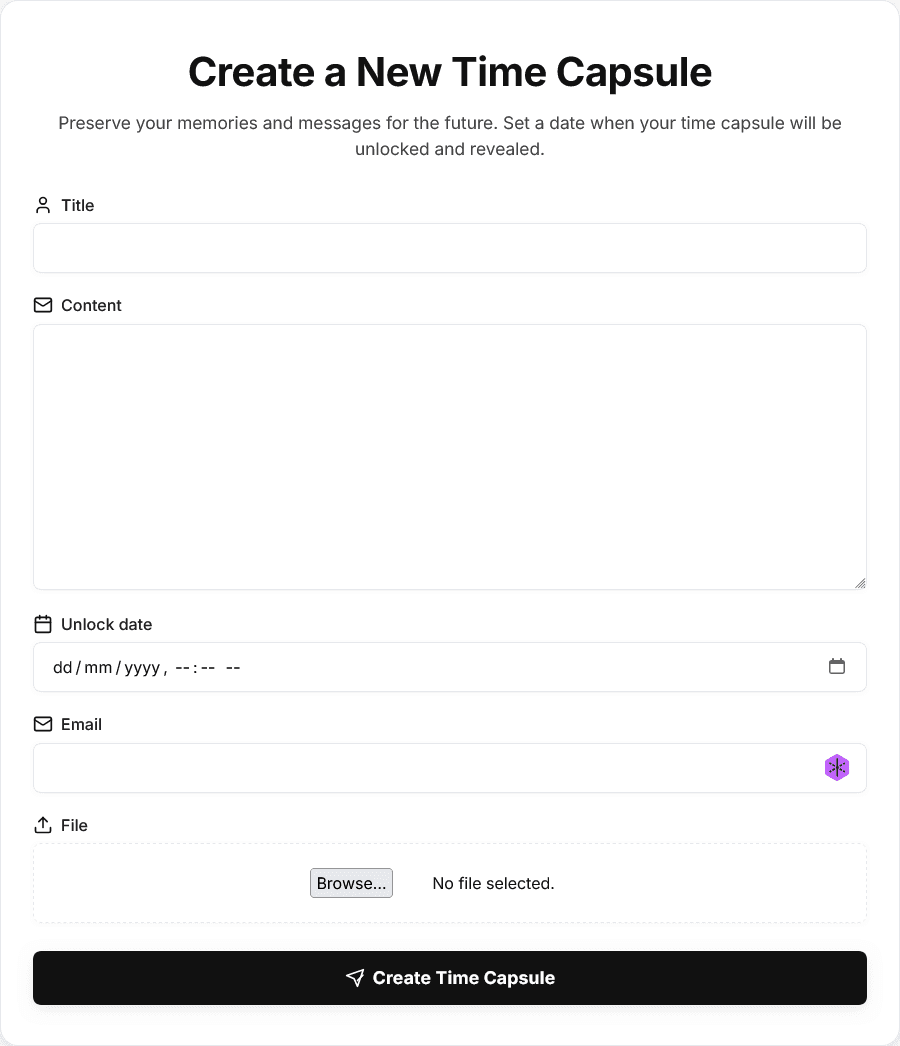
Creating a Capsule
Navigate to Create Page
From your dashboard, click "Create Capsule" or visit /capsule_create/
Fill Out the Form
Required Fields:
- Title - Name your capsule (max 255 characters)
- Content - Your message to the future
- Unlock Date - When the capsule should unlock
- Recipient Email - Who receives the email
Optional Fields:
- Image - Attach a photo or image
Submit
Click "Create Capsule" to save. You'll be redirected to your dashboard.
When you create a capsule, an email is automatically scheduled for the unlock date!
Capsule Fields
Title
- Maximum 255 characters
- Displayed in dashboard and emails
- Should be descriptive
Content
- Unlimited text length
- Supports line breaks
- Displayed in capsule details and emails
Unlock Date
- Date and time picker
- Must be in the future (recommended)
- Timezone-aware
Recipient Email
- Valid email address required
- Receives notification when capsule unlocks
- Can be your own email or someone else's
Image (Optional)
- Supported formats: JPG, PNG, GIF
- Stored securely on server
- Displayed in capsule details
Viewing Capsules
Dashboard View
Your dashboard shows all capsules with:
- Title
- Status (🔒 Locked or 🔓 Unlocked)
- Creation date
- Quick actions
Detail View
Click any capsule to see:
- Full content
- Unlock date and time
- Current status
- Recipient email
- Attached image (if any)
Content is only visible after the unlock date passes
Capsule Status
Capsules have two states:
Locked 🔒
- Before unlock date
- Content hidden from view
- Email not yet sent
- Status shown in red/orange
Unlocked 🔓
- After unlock date
- Content fully visible
- Email sent to recipient
- Status shown in green
The status is calculated in real-time based on:
if unlock_date > current_time:
    status = "Locked"
else:
    status = "Unlocked"
Deleting Capsules
Navigate to Capsule
Go to the capsule detail page
Click Delete
Click the "Delete" button
Confirm
Confirm the deletion on the confirmation page
Deletion is permanent! The capsule, image, and recipient data will be removed.
Email Delivery
When a capsule unlocks:
- Scheduled Email - Sent automatically at unlock date
- Custom Template - Beautiful HTML email design
- Content Included - Title, content, and link to view
- Fallback - Direct send if Redis unavailable
Email Contents
The recipient receives:
- Capsule title
- Full content
- Link to view online
- Timestamp
- Custom styling
Best Practices
- Choose meaningful titles - Help identify capsules later
- Write thoughtful content - This is for the future!
- Set realistic dates - Consider when you want it delivered
- Verify recipient email - Double-check the address
- Add images - Make it more personal